Google Business Profile
Google Business Profile Verification: Every Method Explained
Google Business Profile verification explained: phone, email, video, live call and postcard, how to record a video that passes, and what to do if it fails.
RankMonk Team · · 10 min read
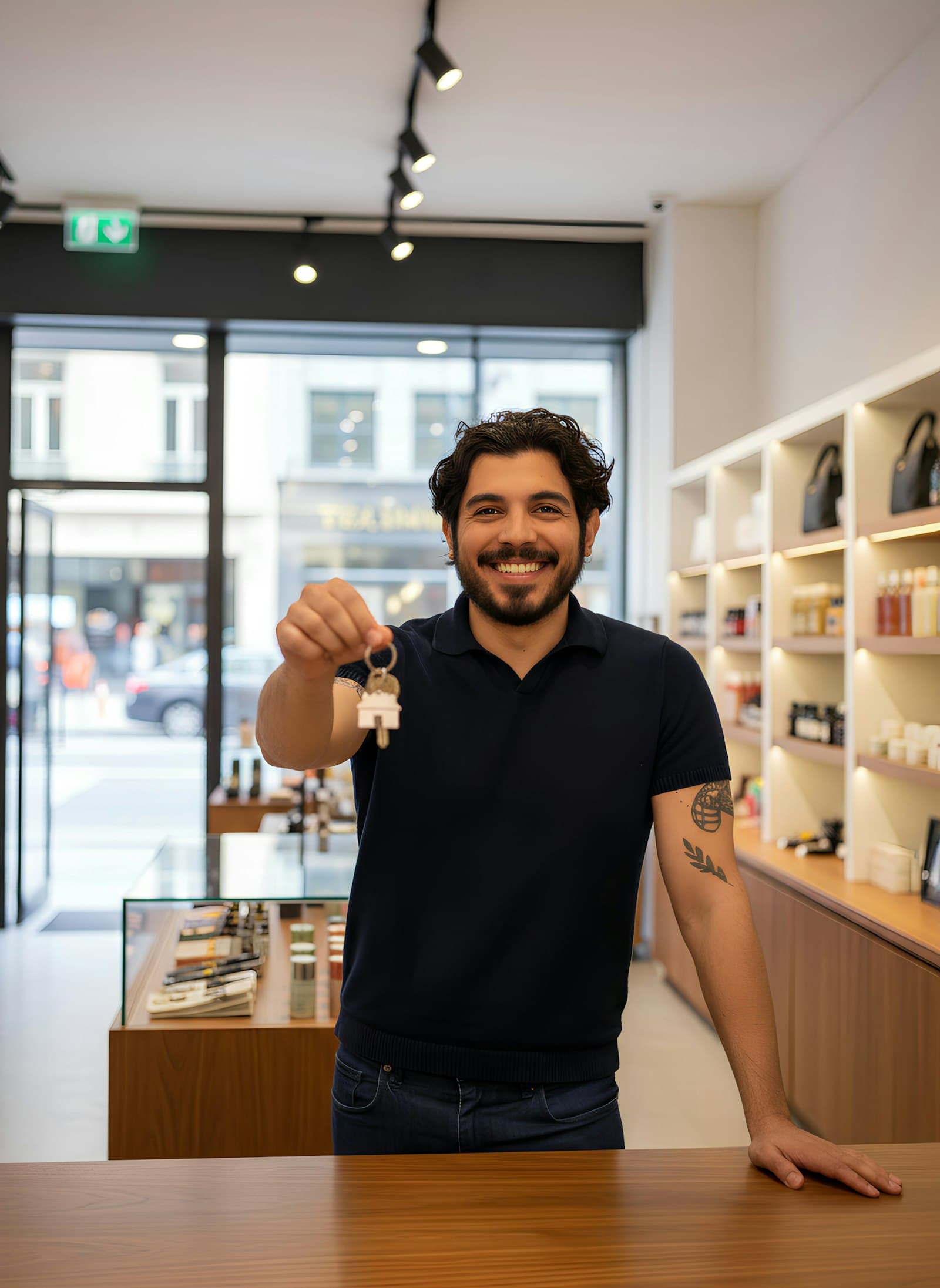
Until your profile is verified, you cannot properly control what Google shows about your business: your hours, phone number, photos or replies to reviews. Google Business Profile verification is the step that proves you run the business at the address or service area you listed, and it is where many Indian shop owners, clinics and home-service businesses get stuck. This guide explains each verification method Google offers, how to record a business video that gets accepted, and what to do when the "Get verified" button keeps coming back.
Everything below is based on Google's own help article, Verify your business on Google, plus our practical notes for businesses in India. Where something is our advice rather than Google's rule, we say so.
Before you start: is your business eligible?
Verification only works if your business is eligible for a Business Profile in the first place. Google's guidelines for representing your business cover businesses that have a physical location customers can visit, or that travel to customers at their locations. Check these points before you request verification:
- Online-only businesses are not eligible. Google's video verification article says so directly. A D2C brand that only sells on its website or on Instagram should not create a profile.
- Virtual offices do not qualify. If you rent a mailing address but do not work there, that location is not eligible.
- P.O. boxes or mailboxes at remote locations are not acceptable addresses.
- Service-area businesses without a storefront that customers visit, such as an AC repair service in Pune or a home tutor in Noida, should hide the address and set a service area instead.
- Your business name should match the name on your signboard, website and stationery. Adding keywords like "Best Dentist in Indiranagar" to the name breaks the guidelines and can lead to suspension.
You also need a Google Account. It can be a Gmail address or any email address you already use, and Google suggests linking a company email if you have one. In our experience, it helps to use an account the business controls rather than a personal account of a staff member who may leave.
How Google Business Profile verification works
The process has the same four stages for most businesses:
- Find or add your business. Sign in to your Google Account and search for your business name and city, or search "my business". If the business is not on Google yet, add it. If it exists but nobody has claimed it, claim it.
- Choose from the methods Google offers. Google decides which verification methods you see, and you cannot change them. The options depend on your business type, public information, region and business hours. Some businesses must verify with more than one method.
- Wait for the review. Google reviews what you submitted. This takes up to 5 business days, and on rare occasions longer.
- Get confirmation. You receive an email once you are verified. After that you can add managers or owners, or transfer primary ownership.
Some profiles are verified instantly. Google says this can happen when you have verified your website in Google Search Console, or when you use bulk verification. If you manage a chain, read our guide to bulk verification for chains instead.
The verification methods, compared
Here is what each method needs from you, as described in Google's help pages:
| Method | What you need | Watch out for |
|---|---|---|
| Phone or text | Someone who can answer the business phone or receive SMS | IVR systems will not receive the code |
| Access to the email address shown on the verification screen | The address shown is chosen by Google | |
| Business video | A phone, the Business Profile app or mobile profile, and a 30-second or longer live recording | Must be unedited, in one take, recorded on site |
| Live video call | A video-capable device, being at the business, during your business hours | Not available for every business |
| Postcard | A correct mailing address and patience | Do not edit name, address or category while waiting |
Google recommends video verification if your business is eligible for it.
Phone or text
Select Get verified, then Phone or SMS, and enter the code you receive. If your clinic or showroom uses a landline with an IVR menu ("Press 1 for appointments"), the automated call will not get through to a person. Switch the number temporarily to a line someone answers, or pick another method.
Select Get verified, then Email, and follow the steps in the message. This only works if you can open the email address displayed on the verification screen.
Live video call
Live video calls are only offered during your location's business hours. You start from Get verified, then Live video call, choose your language, and a support representative joins when ready. Be at the business and ready to show your location from outside, your products or equipment, and proof you manage the place, such as opening the shutter with your keys or showing the billing counter.
Postcard
If postcard is offered, Google mails a 5-digit code to your address. Most codes arrive within 14 days and they expire after 30 days. While you wait, do not edit your business name, address or category, because the code will stop working. Do not request a new code either: that cancels the one already in the post and slows things down. In India, it is worth writing the full address with shop number, floor, building name and a landmark so the postman can find you.
One safety rule applies to every method: Google will never ask you for your verification code. Do not share it with anyone, including an agency or freelancer who manages your profile.
How to record a business video that gets verified
Google recommends business video when you are eligible, and in our experience it is also where most rejections happen. Google's article on verifying with a video recording sets out the rules.
The basic requirements
- Record live. Pre-recorded clips are not accepted, and you cannot film offline and upload later.
- Keep it unedited, complete and continuous, with no breaks.
- Make it at least 30 seconds long.
- Record and upload it from a mobile device through your Business Profile.
What to show if customers visit you
For a storefront, such as a saree shop in T. Nagar or a dental clinic in Koramangala, Google asks you to show three things:
- Location. Street signs, building numbers, or nearby businesses and landmarks. Start outside: the main road, the shop next door, the building name.
- Existence. Your storefront or signage with the business name on a permanent fixture. The name must match your profile. A printed flex banner tied to a railing is risky; a fixed board is what Google describes.
- Management. Areas or tools only staff can access, such as the cash counter, POS machine, kitchen or storage room.
If you have no permanent signage at the location, Google says to list the business as a service-area business instead.
What to show if you go to customers
For a pest control service in Gurgaon or a home salon in Baner:
- Location. Street signs or landmarks at your business address. Avoid filming empty land. Home-based businesses can show landmarks in the immediate neighbourhood.
- Existence. Your tools, equipment, products, workspace, business cards or branded uniform.
- Management. Yourself performing a service, or opening a business-only asset such as a branded van. You can also show a business permit, invoice or utility bill that matches your profile name.
What not to show
Do not show bank account numbers, tax or ID numbers such as PAN or Aadhaar, private information about you or others, or other people's faces. In our experience, filming before opening hours makes it easier to keep customers out of the frame.
Submitting the video
On your phone, open your Business Profile, tap Get verified, choose Business video, read the requirements and allow location, camera and microphone access. Record, review the clip (you can tap Try again to re-record), then tap Upload video. You can delete the video later from Business Profile settings, then Advanced settings, then Video uploads; if you do not, Google deletes it later.
Verification failed? What to do next
Google describes a few specific situations, each with its own fix:
- The "Get verified" button reappears. Google could not fully verify your business. Try again, or use another method if your profile offers one.
- You see "Review issues" after a video. Your video was not accepted. Tap Review issues and read the reasons, such as the business name not being visible, no nearby area shown, or no proof of authorisation. Record a new video that includes everything from the first one plus the missing items.
- Google asks for more information. This usually means recent changes to your business details need checking. Select Get verified and verify again.
- The upload failed. Try uploading again.
If none of this works, Google suggests confirming the video meets every requirement, trying again, and then trying another verification method before contacting support.
A common cause of repeat failures, in our experience, is a mismatch between the profile and the real world: the profile says "Sharma Dental Care & Implant Centre" but the board says "Sharma Dental", or the pin sits on the wrong building in a large complex. Fix the profile so it matches what the camera will see, then verify. A Business Profile audit can flag these mismatches before you record.
Someone else already verified your business
If you search for your business and see "Someone else may manage this Business Profile", it may have been verified by a former employee, an old agency or a previous owner. Google's article on requesting ownership explains the steps:
- Go to business.google.com/add and enter your business name and address.
- Select your business and click Request Access.
- Fill in the form and submit it.
The current owner is notified by email and has 3 days to respond. If they approve, you get access. If they deny it, you can suggest edits or appeal. If there is no response after 3 days, you may get the option to claim the profile yourself by opening the confirmation email, selecting View request, then Verify. Google notes the claim option is not always available.
Keep your verification safe once you have it
Verification is not always permanent in practice. Google may ask you to verify again after changes to key details, which its help page mentions as the usual reason for a request for more information. A few habits help:
- Plan big edits, such as a new address or name change, rather than making them casually.
- Give staff and agencies manager access instead of sharing your login.
- Watch for edits you did not make. In our experience, details sometimes change without the owner noticing, for example after a suggested edit. Tools like profile protection alerts tell you when something changes so you can check it quickly.
Frequently asked questions
How long does Google Business Profile verification take?
Google says verification reviews take up to 5 business days, and rarely longer. If you choose postcard, add the delivery time: most codes arrive within 14 days.
Can I choose which verification method I get?
No. Google decides the available methods based on your business type, public information, region and business hours, and they cannot be changed. If several are shown, Google recommends video when you are eligible.
Can a home-based business get verified?
Yes, if you serve customers in person. Set it up as a service-area business, hide your home address, and in a video show neighbourhood landmarks, your tools or products, and proof such as a business invoice or utility bill in your business name.
Can I verify a business that only sells online?
No. Online-only businesses are not eligible for a Business Profile or verification.
Verification is a one-time hurdle for most businesses, and it goes smoothly when your profile matches the real world: the same name as your signboard, the right pin, and a phone line someone answers. Get those right first, record your video in one calm take, and use the "Review issues" feedback if it comes back. Once you are verified, the real work of ranking starts. If you want to see where your verified profile appears across your neighbourhood, ask us for a ranking check.
- Google Business Profile
- Verification
- Setup
See how your business shows up
RankMonk tracks your rank street by street, protects your Google Business Profile and shows whether AI assistants recommend you.
Book a demo →